Finally tracked down and fixed a couple of niggling JavaScript bugs:
Layout corruptions when toggling a page’s favourite status
When clicking the star icon on a page to mark it as a favourite, the layout would become corrupted requiring the page to be reloaded. This no longer happens, so favourite away! (if I may use a noun as a verb…)
Cause
Firing off concurrent AJAX requests that update various parts of the page (the Pages & Faves sidebar panes)
Solution
Perform the AJAX requests sequentially. This is a bit slower, but you probably won’t notice as one of the requests is updating part of the page that is hidden from view anyway.
Sidebar loosing the selected pane
When marking a page as a favourite or setting a page as the default homepage, the sidebar was mysteriously forgetting which pane was selected and resetting back to the table of contents.
This was a tricky one to track down, but it turns out that it was caused by a patch for a security vulnerability that required a CSRF authenticity token to be explicitly included for certain types of AJAX requests. I wasn’t going mad, the application framework was actually resetting the session…
~~~
Glad to have those fixed. Apparently, the Markdown editor doesn’t work at all in Chrome, so I’d like to get that fixed next if possible. Chrome makes up about 37% of WikiPack users, neck & neck with Safari. Of the remaining 25%, most are Firefox users, and I’m very pleased to find that only 2.28% of WikiPack users are on Internet Explorer :)
Previously, we aded the ability to mark pages as “favourites” - there’s a pane in the sidebar that provides quick access to your favourites, which you can use for quickly navigating between your most frequently used pages.
Today, we’re adding the ability to set one page in particular as your “homepage”. There’s a new home icon in the menu bar which will jump straight to it from anywhere in your wiki, and it will also be the first page that loads whenever you log in.
~~~
Setting it up
I found for some reason that when I tried using it on my own account, I had to first log out and then log back in again. Some kind of strange session persistence issue across deployments? If you click the home icon and it doesn’t set the page as your homepage, try logging out and back in again and it should work fine.
For some time, I've been working on a solution to the "email to myself" problem. It's just so much easier when using various apps & services to email things to yourself for processing later than capturing them into some kind of task management system, especially on iOS where copy & paste and switching between apps provides consideraby more friction than the ubiquitous "share by email" feature, but your inbox is not a good todo list for several different reasons.
It seems like I'm not alone. Agile Tortoise, makers of the awesome Markdown scratchpad Drafts, recently blogged about it too, saying that many of their users have requested an "email to myself" feature. They proposed setting up a Twitter account, and using it in conjunction with a service called IFTTT. I'd like to offer another solution which works well with pretty much anything that can send emails, including Drafts.
Email to Markdown
WikiPack pages exist as plaintext Markdown files in a Dropbox folder, and when you log into your wiki, they are rendered as formatted HTML and linked together using WikiWords. As of now, each page in your wiki also has its own email address that you can send content to, using its WikiWord and your wiki's subdomain to form the address. For example:
Inbox@yoursubdomain.wikipackit.com
HTML email conversion
Most apps that can send stuff via email, like Safari, Reeder, and Flipboard use some simple HTML to apply some formatting and insert link text. The HTML will be converted back to Markdown automatically before it is added to the page. It supports basic HTML tags, not tables.
Plaintext emails
Some apps just use plaintext emails, which is fine, because Markdown is plaintext, so no conversion is required.
Using it with Drafts and other apps
Adding content to your pages is now as simple as sending an email. Here's how to do it in a few different apps:
Email to Markdown with Drafts
Drafts is the perfect comanion to WikiPack for quickly capturing ideas, and then adding them to a wiki page in just a few taps because it can preview the Markdown for you before emailing it.
It has many sharing options (which you can configure now), including Email and Markdown: Email. The Markdown: Email action will actually convert it to HTML, but we just want to add the raw Markdown to our wiki, so use the Email action instead.
Compose and preview your Markdown in Drafts
Hit the share button, and select the Email action
Enter the email address of the page you want to send it to and hit send
Once you've entered it, iOS will remember and autocomplete it next time
Email to Markown with Safari
The most common cause of "email to myself" behaviour in Safari is to store a link to the current page for acting on later, or bookmarking it. Make a Links wiki page, then just email the webpage to it!
Mobile Safari
Open a page
Tap the share icon next to the address bar
Select Mail link to this page
Enter the destination page's email address and hit send
Desktop Safari
Open a page
Hit SHIFT+COMMAND+I
This will open your default email client, like Sparrow for example
Enter the destination page's email address and hit send
Email to Markdown with Reeder
Tap the sharing icon in the top right while viewing an article
Select Mail link
Enter the destination page's email address and hit send
You can try the Mail article action, and it does a reasonable job actually, but will need to update it a bit to strip out the <style> tags.
Email to Markdown with Flipboard
Flip to a Tweet or RSS article
Tap the share icon in the bottom right
Select Email link
Enter the destination page's email address and hit send
A world of possibilities
It's early days for this feature, and with your input I'm sure it will evolve a lot, but there are so many possibilities for what you can do with it already. Effectively, I've just given you an API of sorts for converting emails to Markdown that is synced automatically to Dropbox. That's pretty cool!
Just for fun:
Open one of your pages in Marked
Type up some quick Markdown in Drafts and email it to the page
Watch in awe as the rendered page updates automatically in Marked
Let me know what awesome ways you come up with for using WikiPack's new email to Markdown feature!
78% of WikiPack users who have authorised it with Dropbox are using the template wiki in the /WikiPack folder that is created during signup
20% of current WikiPack users never authorised it to access Dropbox
5% of WikiPack users who authorised it with Dropbox are using their Trunk Notes folder
~~~
WikiPack - Full Dropbox, or App Folder?
So my question to you, dear readers, is which Dropbox access mode would you prefer WikiPack to use?
It currently uses Full Dropbox mode to allow you to browse to a folder outside the sandbox containing Markdown files and import them into your wiki, but only 5% of us have taken advantage of that. The vast majority of WikiPack users have been content to create a template wiki in a /WikiPack folder, which might as well be sandboxed in that case.
Please let me know what you think by voting in the poll above, or getting in touch be email/Twitter:
The following is a more verbose post on Dropbox sync:
Why applications use cloud sync
The most obvious reason for using cloud sync services is to share data between applications & devices. For example, if you use the same app on your smartphone, tablet, and desktop devices, you want each instance of the app to share data & settings in order to provide a consistent user experience.
iCloud - sharing application data between devices
On iOS, iCloud serves this purpose well - iPhone/iPad/Mac apps can transparently share data via iCloud. This is fine if you only ever want to access the data with this particular application. It doesn’t help you if you want to work on it with other applications or command-line tools that don’t support iCould.
Dropbox - sharing any data between any device, application, or OS
Dropbox on the other hand is literally just a folder in your filesystem that you can do whatever you want with. Anything in your Dropbox folder gets transparently synced to the cloud, and it has become the de facto standard for sharing data between different applications across multiple operating systems.
The mobile client for Dropbox essentially exposes this filesystem to mobile applications as well, allowing you amazing flexibility in the range of tools you can use to work with your data.
Dropbox access modes
Dropbox offers two modes of API access to third-party applications:
Full - applications can read & write to the entire contents of your Dropbox
Sandboxed(“App folder” mode) - applications can only read & write to files within their own sandboxed folder
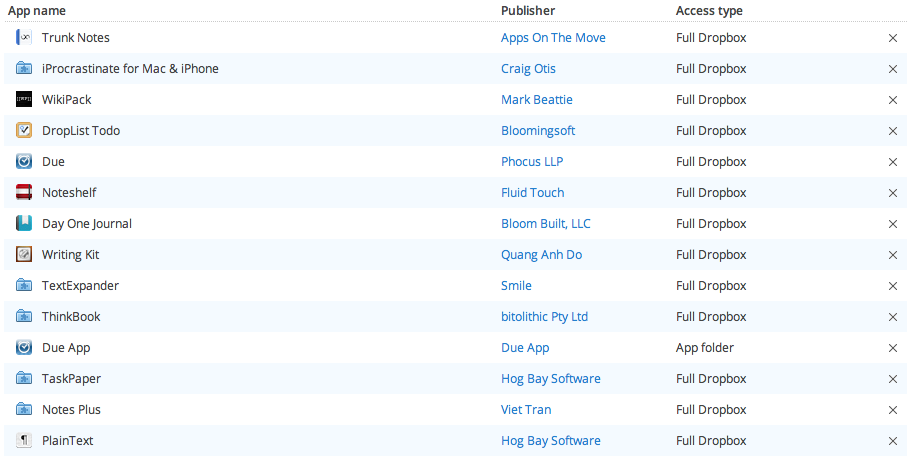
Take a look at your phone, and make a quick list of all the apps you have installed with Dropbox access. I have the following on either my iPhone or iPad:
Find any surprises? I was a little surprised to see that only Due App uses App folder mode, which it should as it only serves to share binary data between the iOS/Mac versions, but other apps like TextExpander that use it for the same purpose use Full Dropbox mode. Why do apps like Noteshelf that only export files to Dropbox need full access?
The de facto standard for iPhone app access is Full Dropbox, and most people don’t even know, or care, by why?
A matter of transparency & perceptions
When you authorise an iPhone app with Dropbox, you get a nice familiar login screen which looks like this:
Linking will allow this app to access and modify files in your Dropbox
Doesn’t sound so bad, does it. When you authorise a web application with Dropbox however, it presents you with the following:
This app will have access to your entire Dropbox.
Please make sure you trust this app before proceeding.
Wow, that sounds kinda scary, and is probably why 20% of my users have dropped out right there. What’s the difference in the kind of access to your data? Absolutely none
We inherently trust smartphone apps, because it feels like our data is safe & sound within our phone, but we instinctively distrust web services, probably because many of them have acted like dicks in the past with our data, so who can blame us?
It’s not easy to earn trust as a web application developer, so I’ve been completely open about WikiPack’s Dropbox sync, but having run the numbers, I should probably listen to my users and switch over to App Folder mode.
I was just about to go about my daily tasks, in this case processing an email, when I realised it might be of interest to anyone wondering how to integrate WikiPack into their productivity workflow.
As a general rule, no - as a strict rule, I don’t use my email inbox as a todo list, but rather process & then archive or delete them. If they can be acted on immediately, I do so, otherwise I’ll add an item to my todo list. The problem though is the disconnect between the contents of the email, and the todo item related to it.
One way I work around this, is by creating “throw-away” wiki pages for longer todo items. In this case, the email was related to school, so I edited my School page and added a wiki link like:
**[[School-2012-05-31|2012-05-31]]** - received an email with a list of schools to checkout
Hint: Use TextExpander to insert timestamps quickly
I then save my School page, and click the link to create a new page to receive the contents of the email. This way, when I hook it into my other productivity apps, it’s interlinked to my other School related pages. I love using wikis like that.
~~~
Integrating WikiPack with other apps
Having a dedicated wiki page to todo list items is really useful, but the possibilities are endless. Now that I have a wiki page, I can click through the links, find each school’s phone number, and add it to my page. If I need to find one of those numbers later, I can just load up my School page and look it up really quickly.
I’ve previously demonstrated how to hook WikiPack into AddressBook to use it as an ad-hoc CRM, but each page’s URL can be used in pretty much any app that will render it as a clickable link.
Markdown editor features
In the video I demonstrate a couple of handy features of WikiPack’s Markdown editor:
Turning a block of text into a bulleted list
Select a block, hit the list button
Turning text into links by pasting a URL
Select the text, paste in the URL
So now I have my wiki page, and made a video in the process. How productive! Wait, I’d better get back to work… where’s the phone?
I’m a bit of a keyboard jockey, where there’s a keyboard shortcut I’ll use that in preference to clicking UI elements with a mouse. Maybe it’s a bit old-school, but I find it to be faster and more efficient when writing in Markdown.
WikiPack provides GUI controls for most of it’s Markdown editor features, but also has keyboard shortcuts for things like bold & italic. Now, you can use the keyboard to insert links & images too!
Just paste a URL into the page, and WikiPack will take care of the rest for you. You can either position the cursor where you want the link/image to be inserted, or select some text and paste a URL over it. It knows whether the URL is to a webpage or an image, and creates the appropriate Markdown. This makes linking text to a URL really quick, and inserting images is now even more painless than before, I think it’s great.
~~~
Give it a try, and let me know what you think. Hopefully, it won’t raise the ire of too many people who just want to paste URLs without turning it into a link dang nab it!
It’s been an amazing journey working on WikiPack. I’m so grateful to everyone who’s signed up for an account, pushed the site to it’s limits, and helped develop it into a solid product. There’s still some polishing to be done, but the time to shed the “beta” banner and go live is drawing nearer.
What’s left to be done?
Going live will require some significant work around making a great marketing site, and implementing the billing mechanism, so during that time there will have to be a feature freeze. It shouldn’t be for long, but these kinds of things often take longer than expected, so ask yourself “If I could add/change/remove anything, what would it be?”, and have your say in the forums and the feature requests page.
Setting up a company
Why are these things so complicated? It’s not that bad really, the hardest thing is thinking of a company name. From my research, it seems that most of the software apps & services I use have a parent company name, and register their product names as trademarks.
Any ideas or suggestions? Tweet them to @wikipack.
Growth so far
The response so far has been phenomenal!
In the last week alone, 150 new wikis have been created
The growth rate from Jan-March was around 35%
The growth rate for April & May has been over 100%
In total, there are over 11,000 pages on WikiPack
WikiPack has performed over 13,000 Dropbox sync operations
99.23% of Dropbox sync operations have completed successfully
Humble beginnings, but I’m very pleased! The proof though will be whether this kind of growth can be sustained when it is no longer free…
Business model & pricing
The business model is simple, build an awesome product and ask people for money to use it. The challenge is deciding on the pricing.
I’m a realistic person, and I appreciate that most people who would even consider paying for a service like WikiPack would prefer the price to be as close to zero as possible. At the same time, the cost of the resources required to operate the service even at it’s current user base are beginning to stack up, so I need to find a comfortable pricing point that makes it appealing to you as a user, and viable for me as the operator. Maybe you’d like to help me decide?
My goals are humble: a few thousand people paying a few bucks a month would support future development of the platform. That would be awesome!